Connect Your AI Assistant
Give your AI tools instant access to the Sonance design system. Colors, typography, components, and guidelines - all in one connection.
Model Context Protocol (MCP)
One-time setup, automatic updates. Your AI gets direct access to all brand assets, components, and guidelines. No downloads required.
Select Your Platform
Before you start
This requires the Claude Desktop app (not claude.ai in your browser).
Download Claude DesktopNo terminal required
Download and double-click to install. That's it.
Download the extension
Click the button below to download the Sonance Brand extension file.
Download sonance-brand.mcpb(5.9 MB)Open the file
Double-click sonance-brand.mcpb in your Downloads folder. Claude Desktop will open and prompt you to install the extension. Click Install and you're done.
Updates: The one-click bundle doesn't auto-update. Check back here for new versions, or use the Quick Install tab for automatic updates via terminal.
Next Steps
Restart Claude Desktop
Important: You must fully quit Claude Desktop, not just close the window.
Mac
Press ⌘ + Q or go to Claude → Quit Claude
Windows
Press Alt + F4 or right-click taskbar icon → Close
Then reopen Claude Desktop.
Verify It's Working
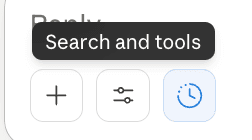
Look for the "Search and tools" button in the message input area at the bottom of Claude Desktop.
1. Click the "Search and tools" button
Located next to the message input area
2. Look for "sonance-brand" in the connectors list
You'll see it with a toggle switch
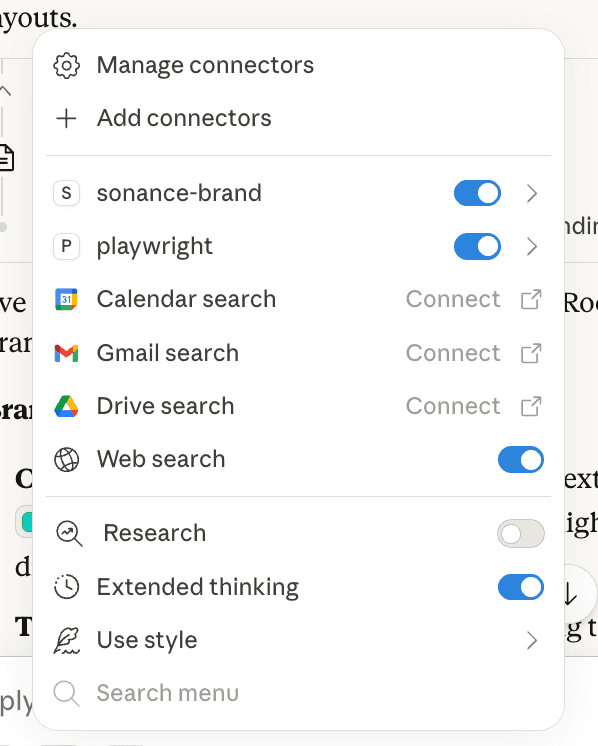
3. Make sure the toggle is ON (blue)
When enabled, Claude can access Sonance brand guidelines

Start Using It!
Try asking Claude any of these:
- "What are the official Sonance brand colors?"
- "Show me the available Sonance logo options"
- "Create a branded header section using the Sonance design system"
- "Help me pick colors for a dark-themed presentation"
Troubleshooting
I don't see the "Search and tools" button
Make sure you're using the Claude Desktop app, not claude.ai in your browser. MCP tools only work in the desktop app.
"sonance-brand" isn't showing up
Make sure you fully quit Claude Desktop (⌘+Q or Alt+F4), not just closed the window. Then reopen it. The MCP server loads on startup.
Error in config file
Check that your JSON is valid. Common mistakes: missing commas between entries, mismatched brackets, or extra commas at the end. Use a JSON validator to check your syntax.
npx or node errors
You may need to install Node.js. Download it from nodejs.org (choose the LTS version).
What Claude Can Access
- Complete brand guidelines (colors, typography, design rules)
- CSS theme with all color variables and tokens
- Full UI component library source code (50+ components)
- Utility functions (cn, etc.)
- All brand logos and asset paths (65+ logo variants)
What Your AI Can Do
Generate Components
Create brand-compliant buttons, cards, forms, and more
Apply Colors
Use exact Sonance, IPORT, or Blaze Audio color palettes
Build Pages
Create full layouts following brand typography and spacing